
What you need
- A phone with NFC: an iPhone, or an Android phone that has NFC.
- A blank NFC tag, card or sticker. NTAG213, NTAG215 and NTAG216 chips all work; a short profile link fits easily on an NTAG213. Avoid MIFARE Classic chips, which many phones cannot write.
- The full link to your digital business card.
1. Get your card link
Use the full URL of your card, for example https://medicomm.vn/visit-card/your-name/. Do not write the MediCOMM home page: the tag should open your own profile.
If you do not have a card yet, create one first (the form is in Vietnamese). Your card is published as soon as you create it; copy the link, then come back and continue from step 2.
Create a MediCOMM digital business card ↗
2. Install NFC Tools
Install NFC Tools by wakdev: from the App Store on iPhone, or from Google Play on Android. It is free and reads and writes standard NFC tags.
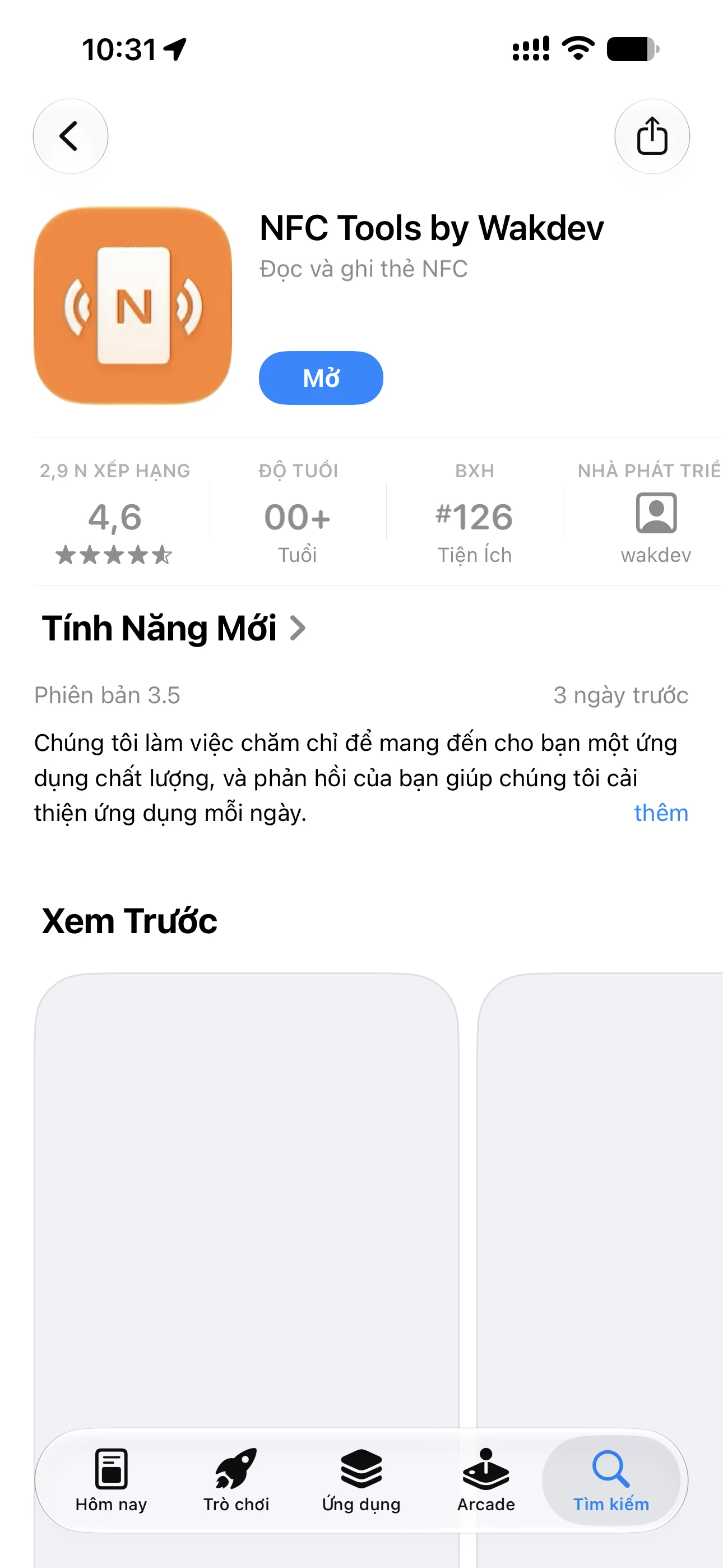
3. On iPhone: add a URL record and write it
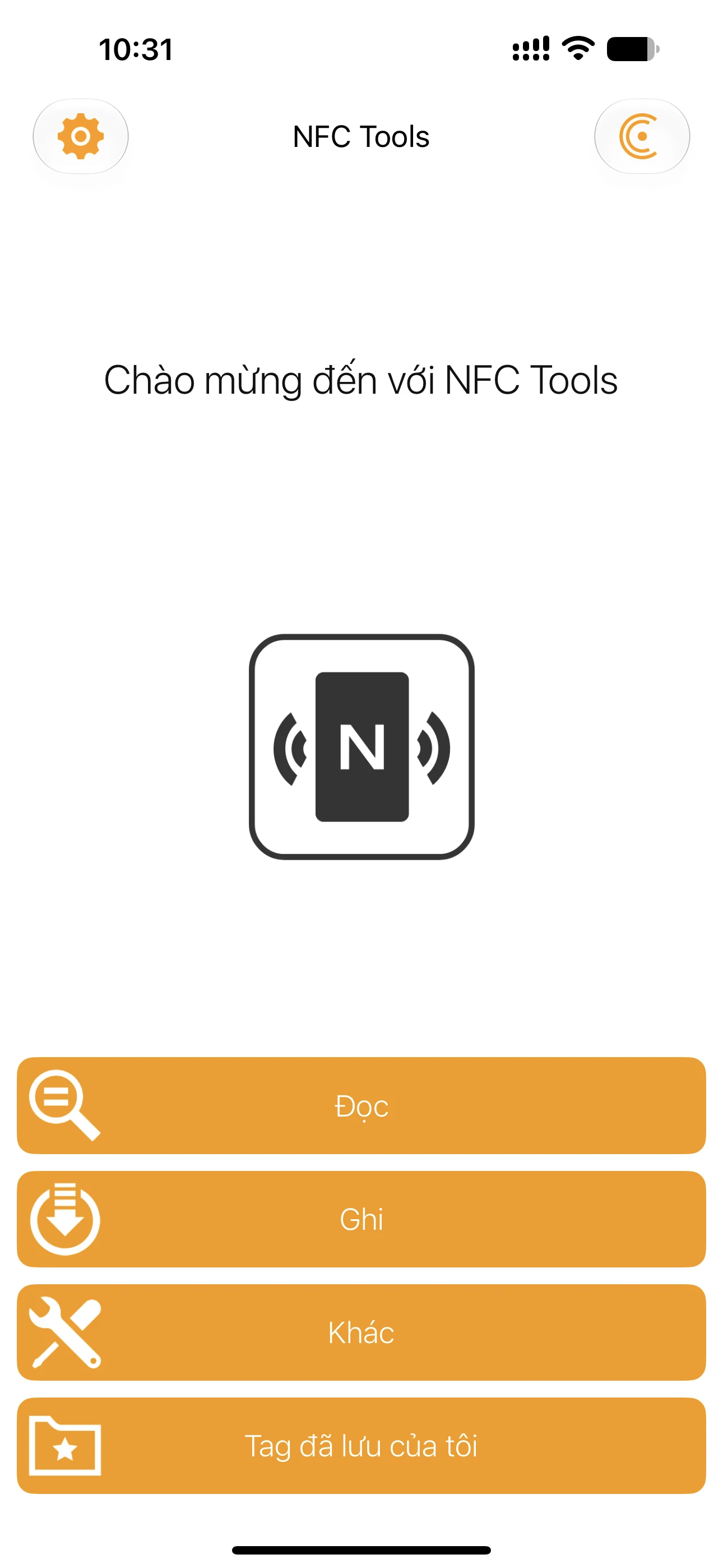
The screenshots below show the iPhone app with its interface set to Vietnamese. The English label for each button is given in the steps.
Open the app and tap Write on the home screen.
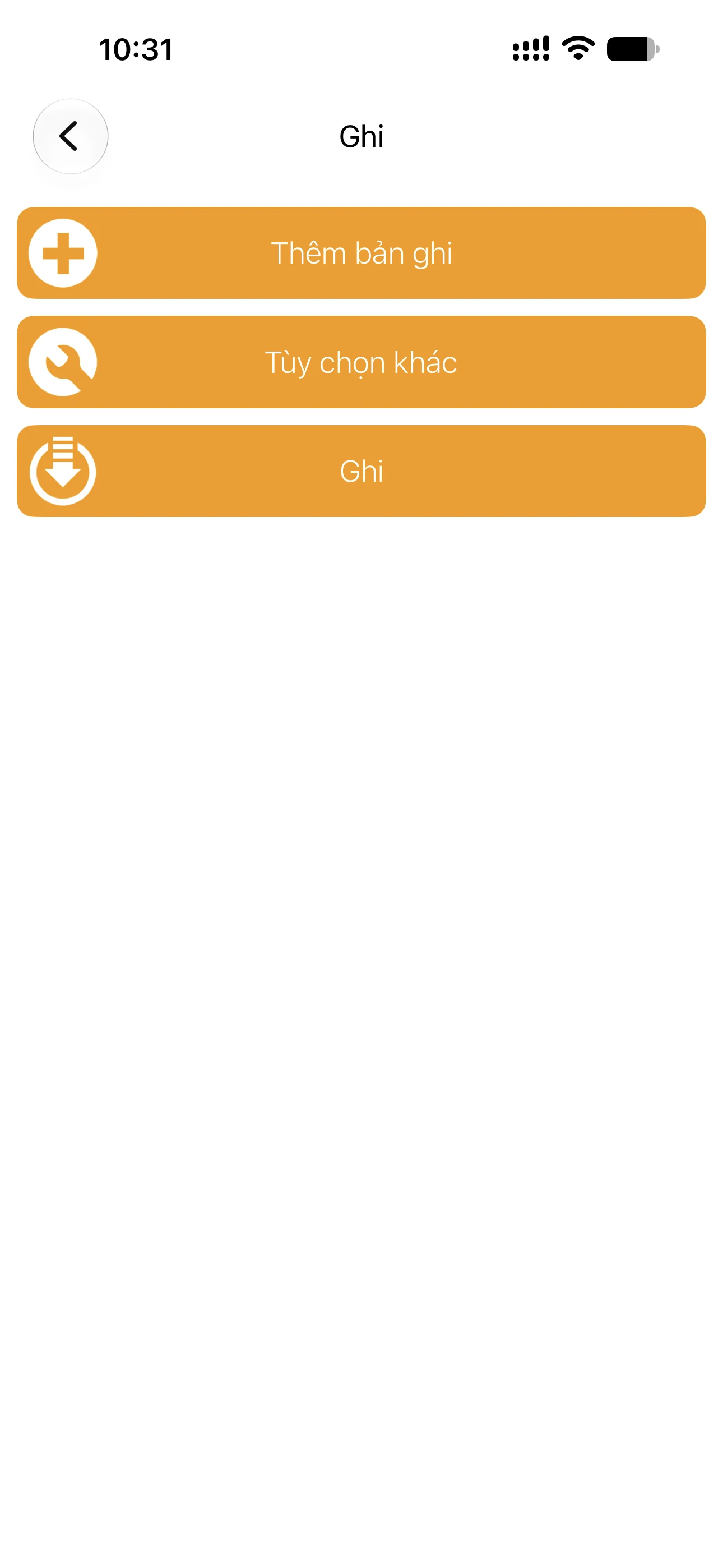
Tap Add a record.
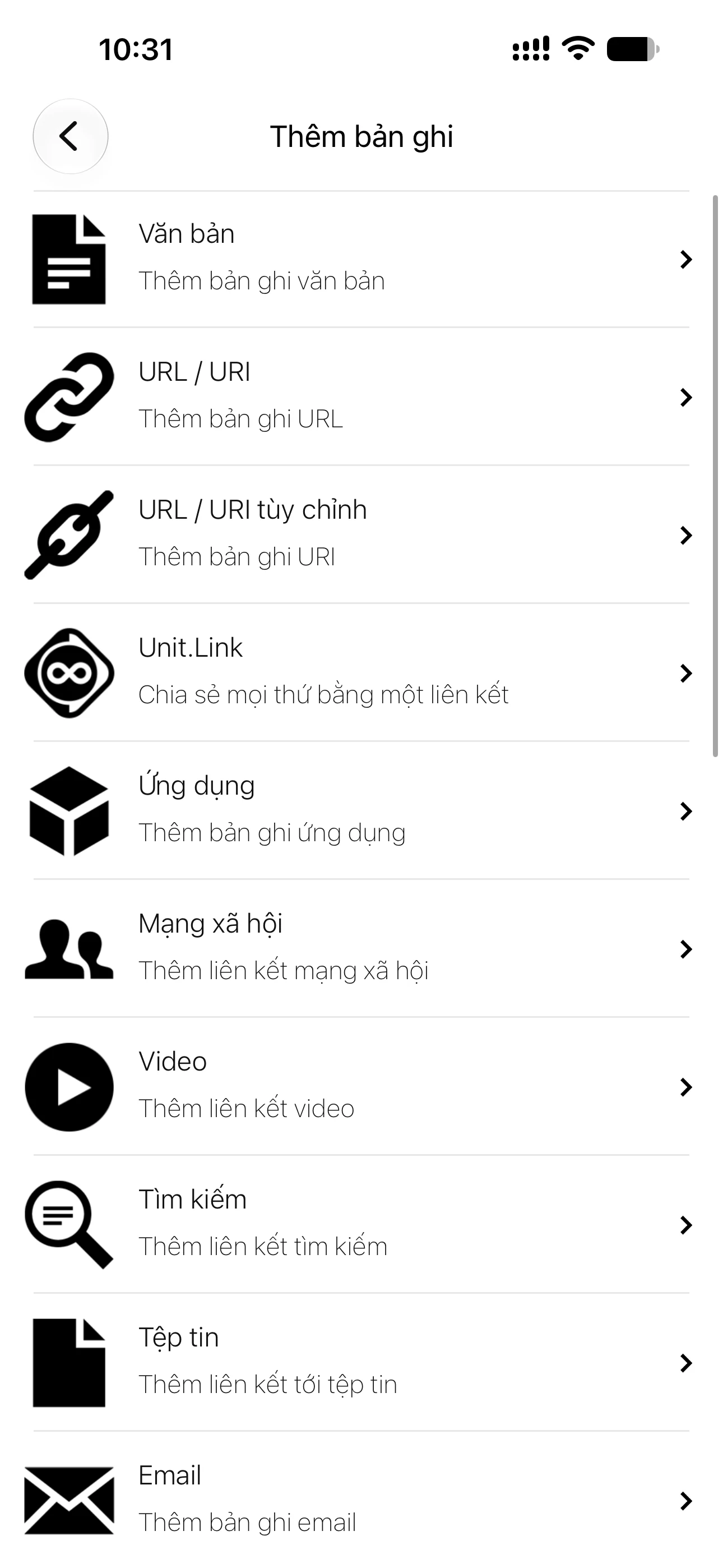
Choose URL / URI from the list of record types. This is the record type phones recognise as a web link; a Text record will not open in the browser.
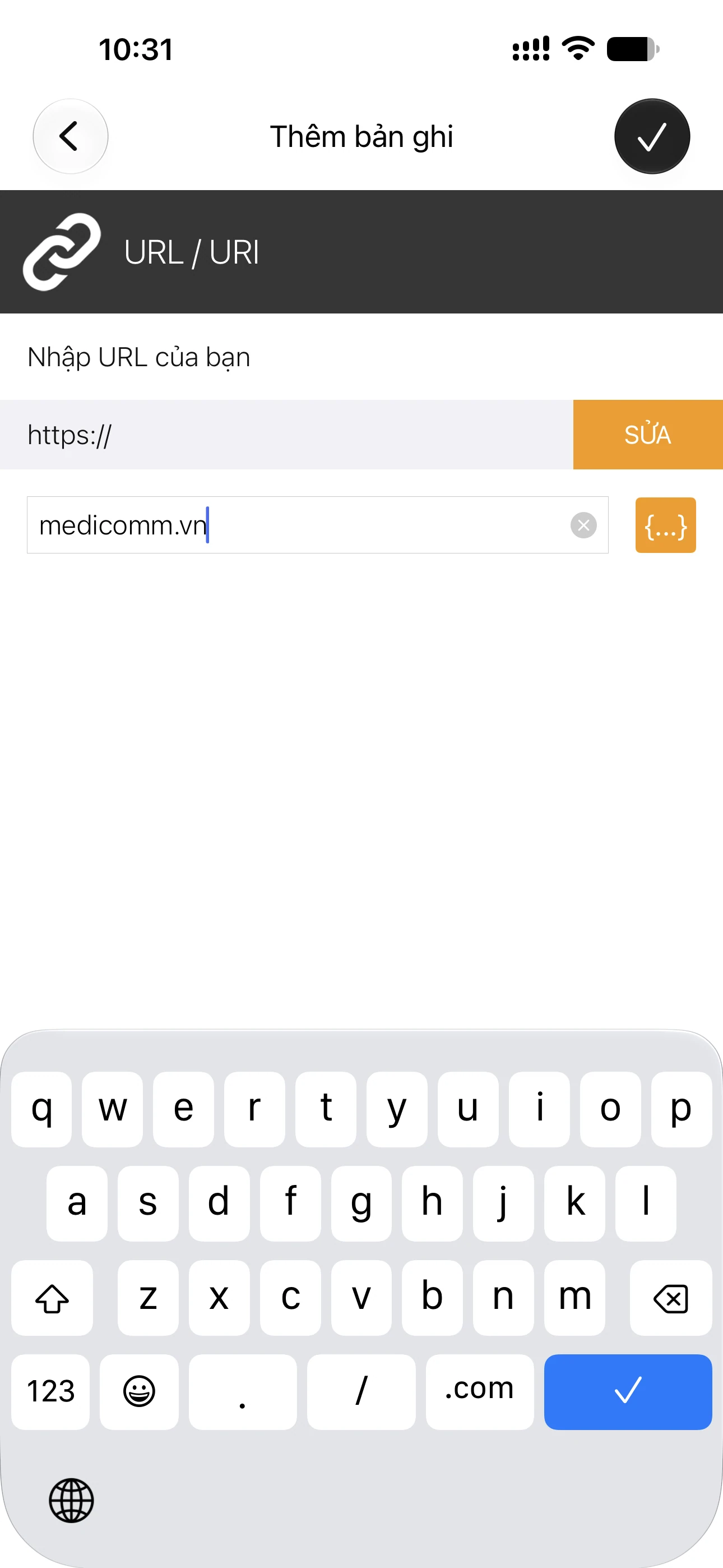
Type your card link. If the app already shows https:// as the prefix, type only the rest, for example medicomm.vn/visit-card/your-name/. Tap the check mark to save the record.
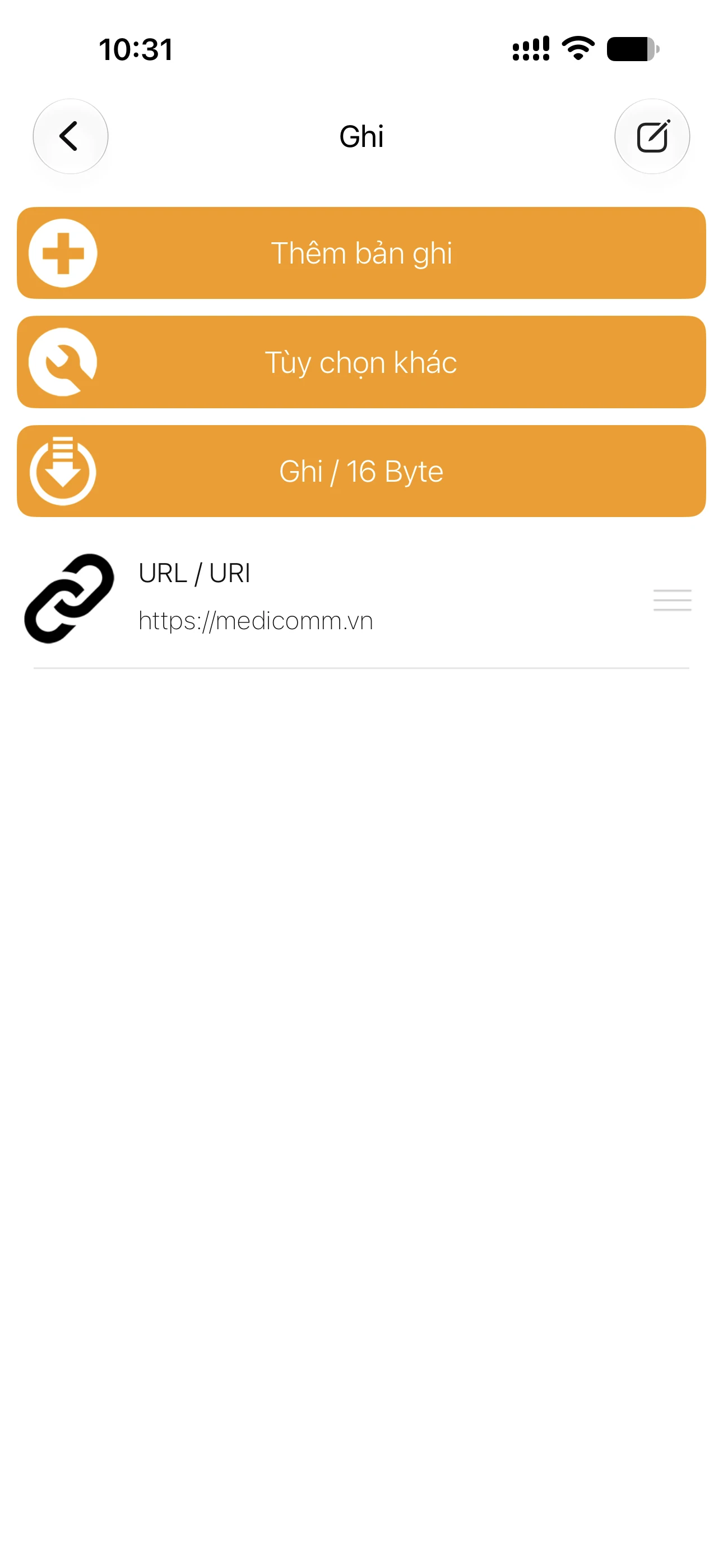
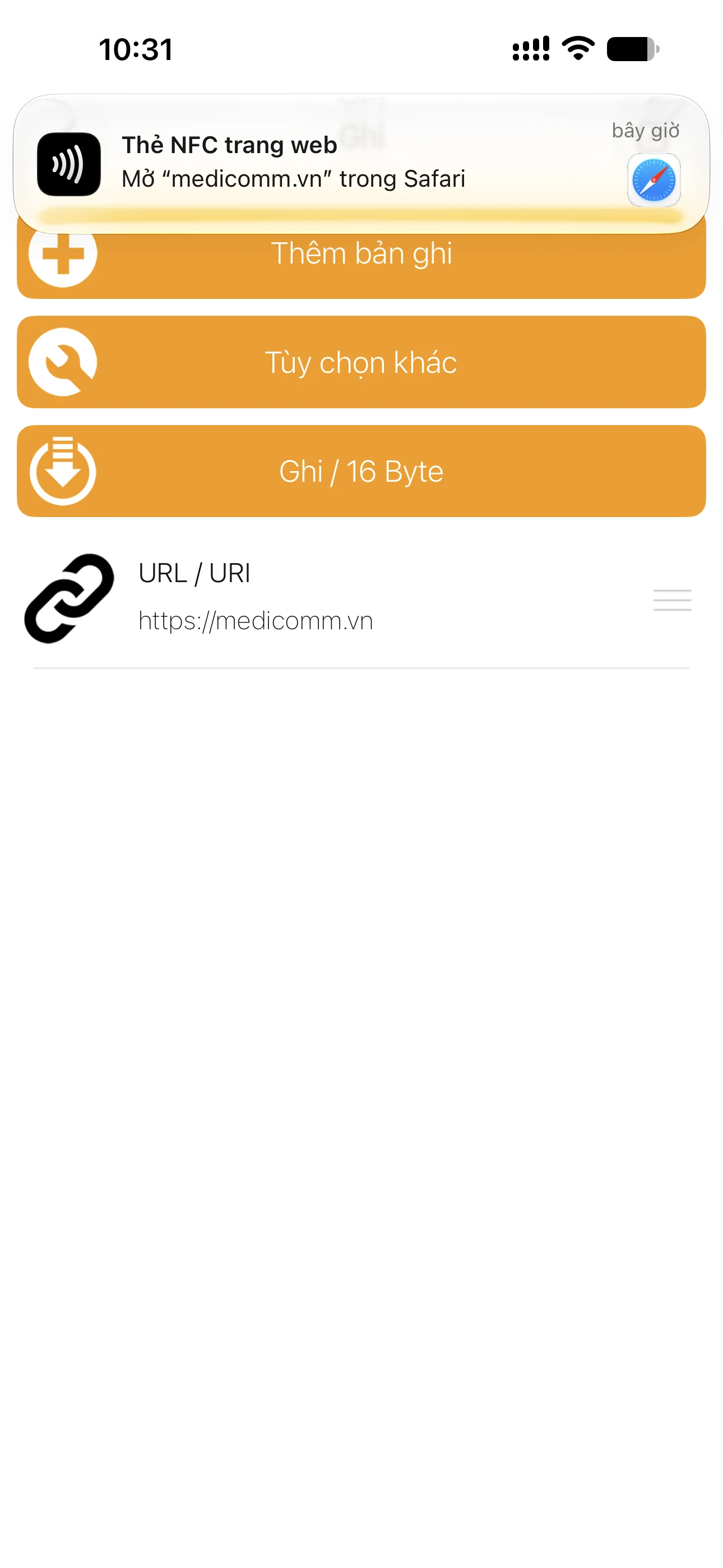
Check the link in the record list, then tap the orange Write button. It also shows the size of the data, for example “Write / 16 Bytes”.
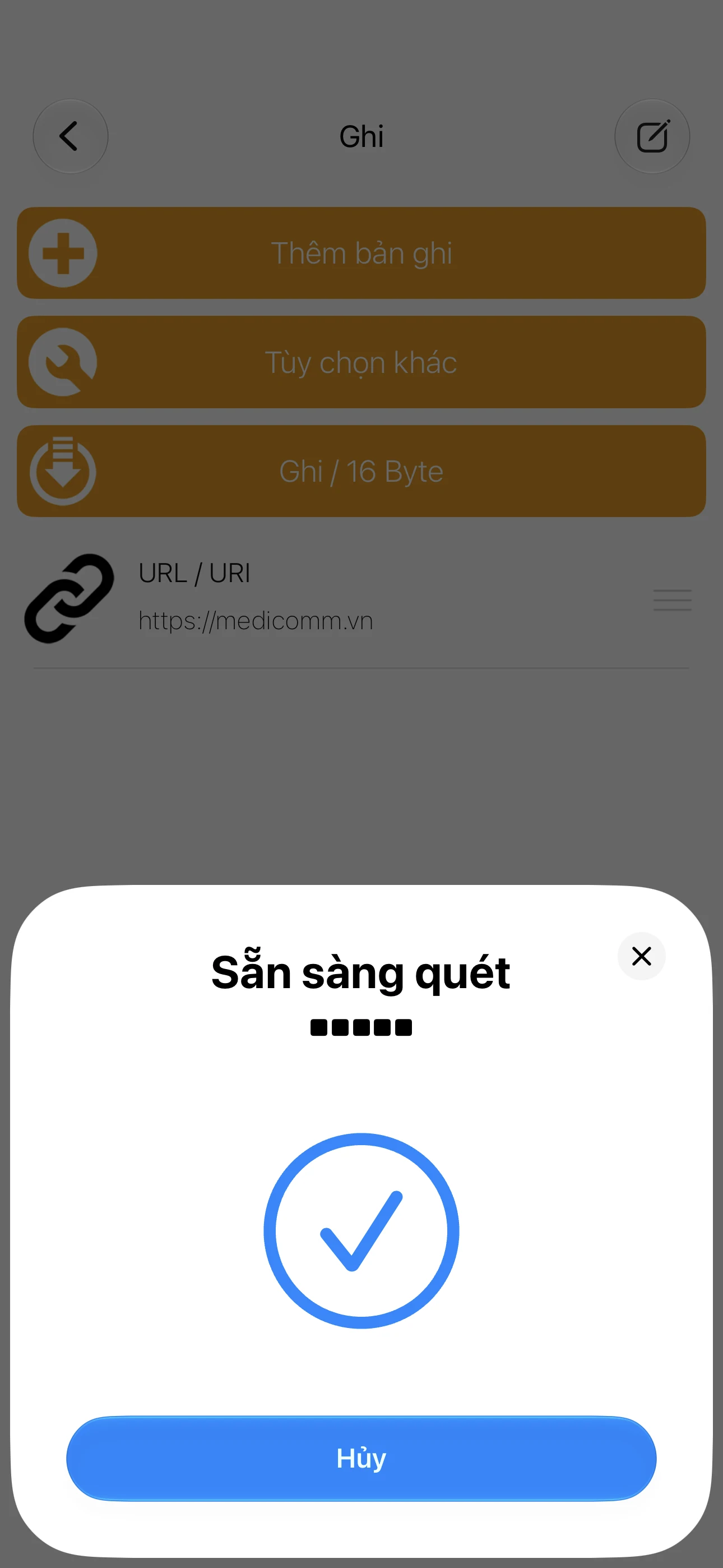
When the app shows Ready to Scan, hold the tag against the top of the back of your iPhone and keep it still until the app confirms the write.
4. On Android: turn on NFC
Android phones only read and write tags while NFC is switched on, and the setting is in a different place on each brand.
- Google Pixel: Settings > Connected devices > Connection preferences > NFC, then turn on Use NFC.
- Samsung Galaxy: Settings > Connections > NFC and contactless payments, then turn the switch on. You can also swipe down twice to open Quick settings and tap NFC.
- Other brands: open Settings and search for “NFC”. If the setting does not exist, the phone has no NFC chip and cannot write tags.
5. On Android: write the link to the tag
NFC Tools on Android follows the same steps as on iPhone, but the screens look slightly different.
- Open NFC Tools and go to the Write tab at the top of the screen.
- Tap Add a record, then choose URL / URI.
- Type your card link. As on iPhone, if https:// is already selected as the prefix, enter only the rest of the address. Tap OK.
- Back on the Write tab, tap Write / X Bytes. The app asks you to approach an NFC tag.
- Hold the tag flat against the back of the phone and keep it still until the app shows that the write is complete.
On most Android phones the NFC antenna sits in the middle or upper half of the back. If nothing happens, slide the tag slowly around that area. Take off thick cases and any wallet case with bank cards in it, since other cards can get in the way.
6. Test the tag
Unlock a phone, turn on NFC if it is Android, and tap the tag. Android looks for tags only while the screen is on and unlocked, so a locked phone will not react.
- iPhone: a notification appears at the top of the screen. Tap it to open the link.
- Android: the link usually opens straight in the browser. From Android 17, the phone shows an open-link notification first, and you tap it to open the page.
Check that the page shows your own name and details, not the MediCOMM home page.
If the tag will not read or write
- Remove thick cases, keep the tag away from metal, and move it slowly around the back of the phone.
- On Android, check that NFC is turned on and that the phone has NFC at all.
- If the tag already holds an old link, use Erase tag in the app (on the Other tab), then write again. Avoid Format memory.
- Do not lock the tag unless you are sure the link is final. Locking is permanent: a locked tag can never be rewritten.
- If the scan opens the home page, edit the record so it holds the full URL of your card and write it again.
The tag stores only the link. When you edit the details on your card, the link stays the same, so there is no need to rewrite the tag. Scan it again after editing to check.
Sources
wakdev: How to write a link (URL) on an NFC chip ↗
Google Pixel Help: Turn on NFC ↗
Samsung Support: What is NFC and how do I use it? ↗
Android Developers: NFC basics ↗
UAL Creative Technology Lab: Using NFC Tools to read and write NFC tags ↗

